Adding cards
Scanning a binder page
Photograph a whole 9-pocket binder page and add all nine cards at once. How to take the photo, check the results and fix any misses.
If your cards already live in 9-pocket pages, you can add a page at a time. Card Cabinet finds the page in the photo, crops each pocket, identifies every card in one go, and lets you check them before anything is added.
Scan a page
- Open Scan and choose Binder page above the camera.
- Lay the binder flat and fit the whole page inside the frame, in even light.
- Take the photo: press Capture now (or Space) on a computer, or the shutter button on a phone. You can also choose Choose a photo to use one you've already taken.
- Card Cabinet shows Finding the cards… and then Identifying the cards….
- Check the nine results, fix any misses, and choose Add 8 cards (the number matches what's ready), or press Enter.
- Changed your mind? Choose Undo this page on the message that appears.
Empty pockets are spotted and skipped, so they don't use a scan.
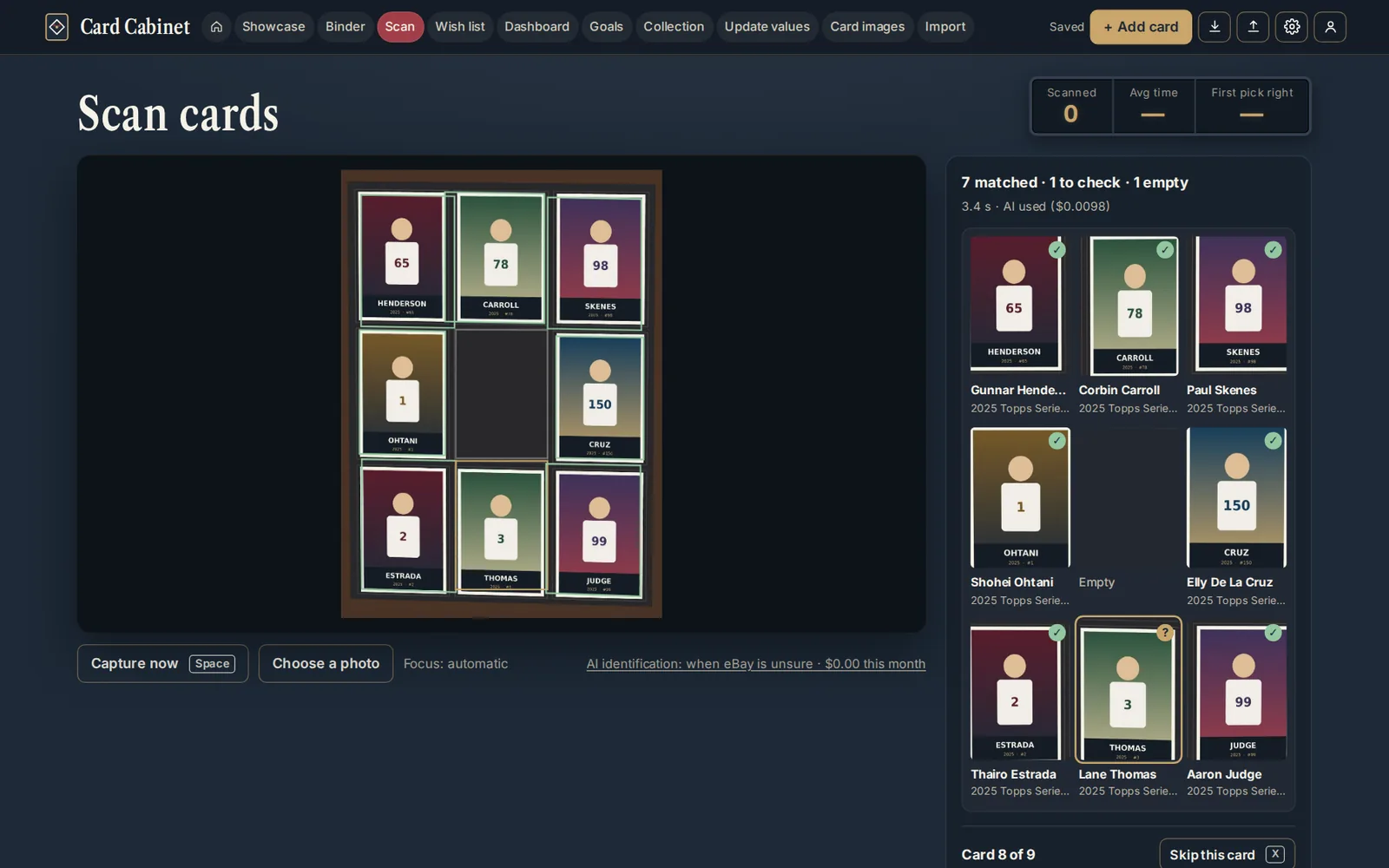
Checking the results
Across the top, a summary counts what was found, for example 8 matched · 1 to check · 1 empty. Each pocket appears as a tile in the same 3 by 3 layout as your page:
- Green: a confident match.
- Amber: worth a check before adding.
- Needs a name: nothing matched well; type the details in.
- Empty or Skipped: nothing will be added from this pocket.
Most pages hold one set. Same year and set for all above the grid sets both on every card at once.
Tiles also show You have it or Wish list when they apply, and Glare when a reflection may have hidden part of the card.
Fixing a pocket
Select a tile to open its editor (on a phone, tap it; ‹ All cards goes back). The editor works like a single scan: pick one of the options or type over the fields.
- Skip this card (X) leaves a pocket out. Choose it again to put it back.
- Look it up again identifies just that pocket a second time, always using Claude. It counts as one more scan.
- For a pocket marked empty that isn't, Look up this card identifies it.
On a computer, the arrow keys or W A S D move between pockets, 1 to 4 pick an option, and E jumps to the Player field.
What it costs
A page counts one scan per card on it against your free monthly allowance. If a page has more cards than you have scans left this month, Card Cabinet says so before it starts, and you can scan the rest one at a time or add your own keys.
Tips
- Shoot straight down, with the whole page and a little of the binder edge in view.
- Glossy sleeves reflect overhead lights. Tilt the binder slightly, or move the light, if tiles say Glare.
- Cards that are hard to read on their own (vintage, oddballs, close parallels) are easier to fix in the editor than to rescan.
Updated 2026-10-05.