Getting started
Getting started
Create an account, add your first cards and find your way around Card Cabinet on a computer or a phone.
On this page
Card Cabinet is a collection manager for baseball cards. It keeps every card you own with its photo, what you paid and what it's listed for on eBay, tracks the sets you're building, and watches your wish list for good prices. It runs in your web browser on a computer, tablet or phone, with nothing to install.
Create your account
Go to Create account and sign up with your email address and a password, or with Sign up with Google. Card Cabinet emails you a link to confirm your address. Confirming it switches on your free monthly allowance of card scans and price checks.
The first time you sign in with an empty collection, two short screens ask which teams, players and eras you collect, and how you'd like to add your first cards. You can skip both and come back to them any time.
Home
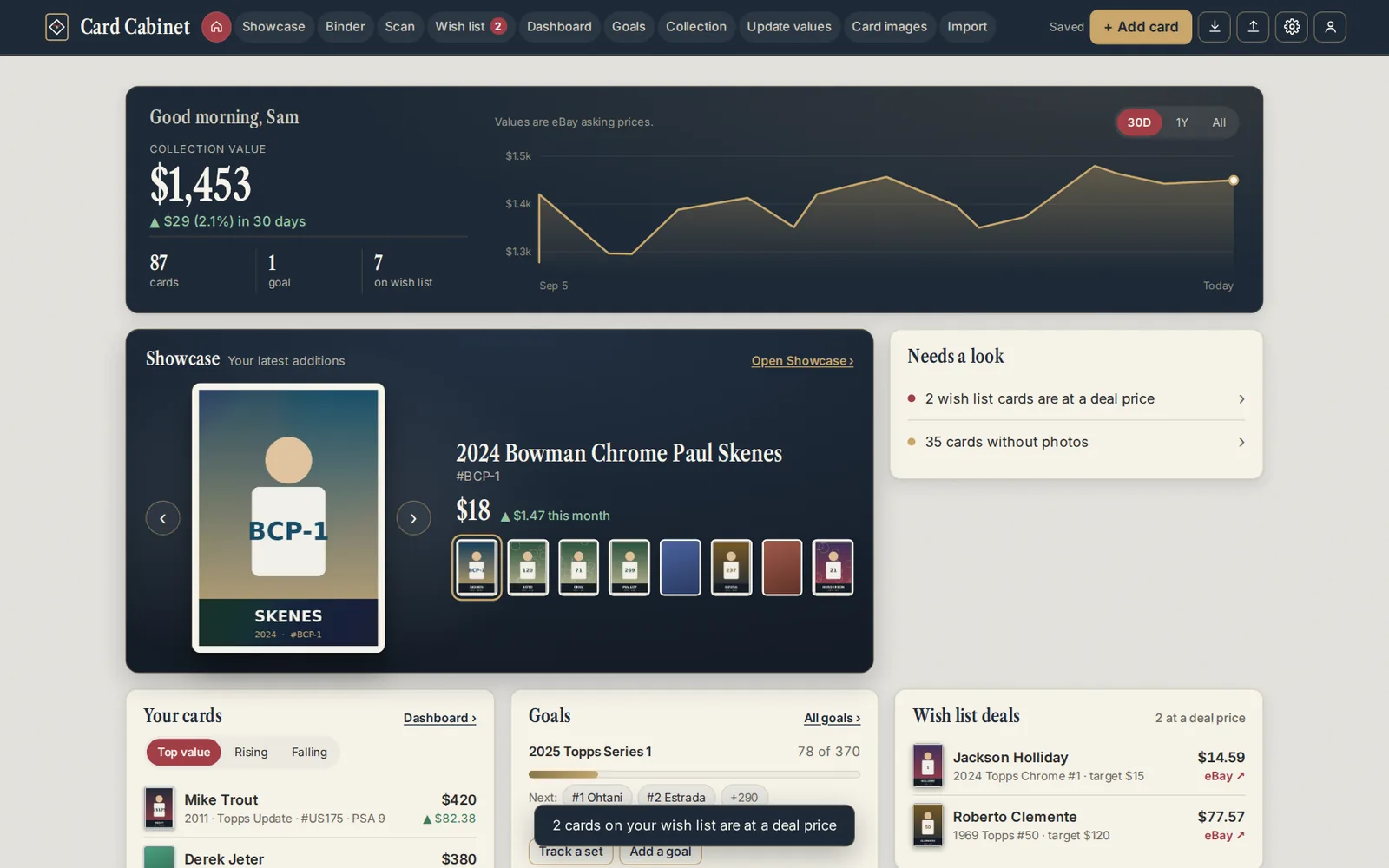
Home is where the app opens. It shows your collection's value and how it has changed, your goals, cards that need a look (such as wish list deals or cards without a photo), your latest additions and your setup steps.
The Get set up list walks through five steps:
- Confirm your email, which unlocks the free allowance.
- Add your first cards: scan one, type one in, or import a spreadsheet.
- Pick your teams and players, so Home and Goals can suggest sets and highlight the cards you care about.
- Choose a set to build, to track it card by card against its checklist.
- Connect your eBay keys, which is optional and removes the monthly price check limit.
Choose Hide this list when you're done with it. Show the setup list at the bottom of Home brings it back.
Finding your way around
On a computer, the bar across the top has every section: Home, Showcase, Binder, Scan, Wish list, Dashboard, Goals, Collection, Update values, Card images and Import. On the right are + Add card, download a backup, restore a backup, Settings and your account.
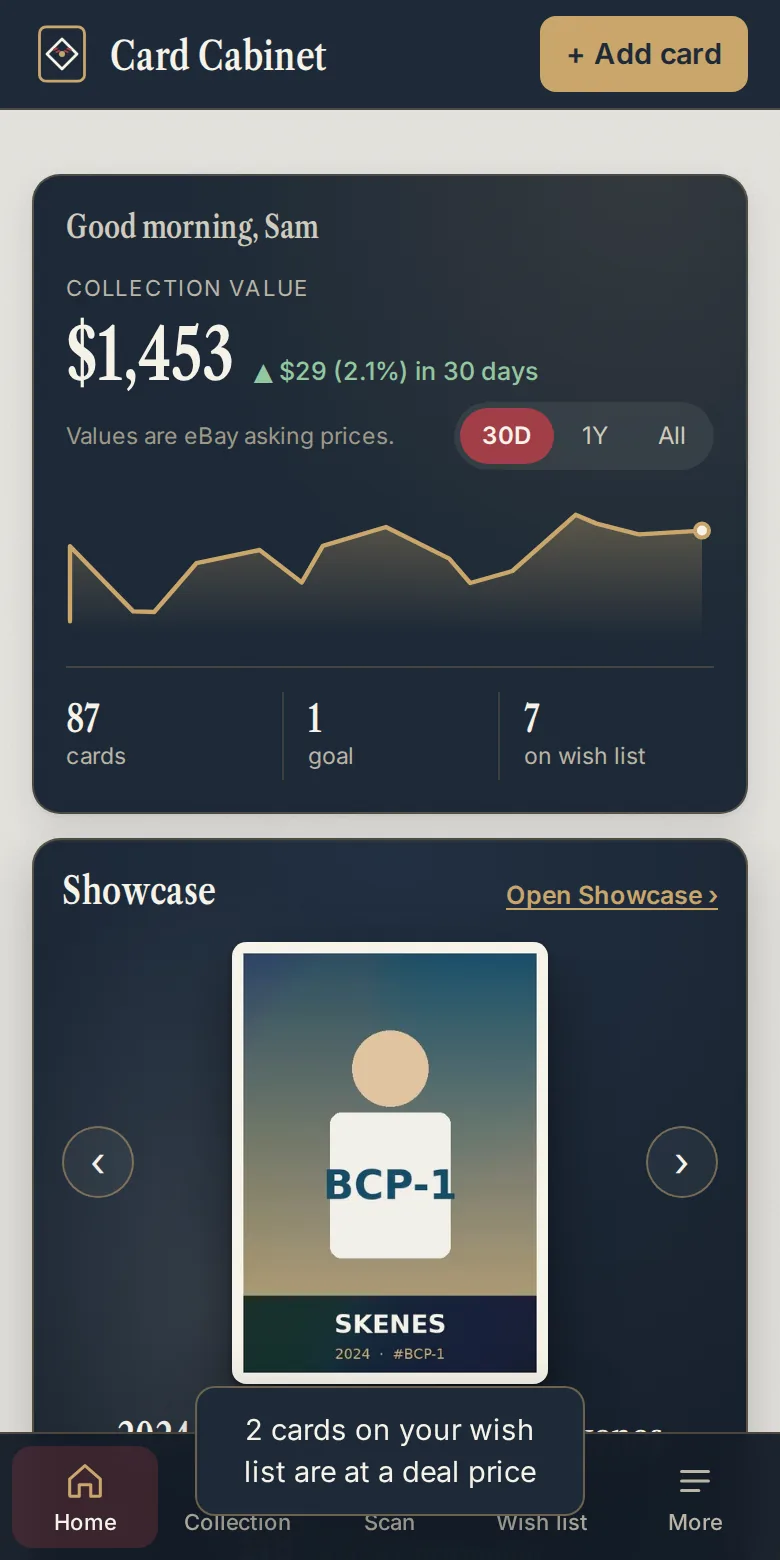
On a phone, the tab bar at the bottom has Home, Collection, Scan, Wish list and More. Everything else (the Showcase, Dashboard, Goals, value updates, card photos, imports, backups, Settings and your account) is under More.
Adding your first cards
There are four ways in, and you can mix them:
- Scan a card with your phone or computer camera. Card Cabinet reads the player, year, set and number.
- Scan a whole binder page, nine cards in one photo.
- Type a card in with + Add card.
- Import a spreadsheet if you already keep a list in Excel, Google Sheets or another app.
Shortcuts and handy keys
On a computer, Esc closes the window on top. The scanner has its own keys, listed on Scanning a card. On a phone, drag a window down or use the Back button to close it.
Next steps
Updated 2026-10-05.