Adding cards
Scanning a card
Hold a card up to your camera and Card Cabinet reads the player, year, set and number. How it works, and what to do when it gets one wrong.
On this page
The scanner identifies a card from a photo and adds it to your collection with that photo. It works with a phone's back camera or a computer's webcam.
Scan a card
- Open Scan (in the top bar on a computer, or the tab bar on a phone). Make sure One card is selected; Binder page scans nine at once.
- Hold the card inside the frame, front facing the camera, on a plain background if you can.
- Keep it still for half a second. The scanner finds the card's edges, waits until it's sharp, and takes the photo on its own. You can also press Capture now (or Space on a computer, or the shutter button on a phone).
- Check the match, then choose Add to collection (or press Enter).
The photo is straightened and cropped to the card, and becomes the card's front photo.
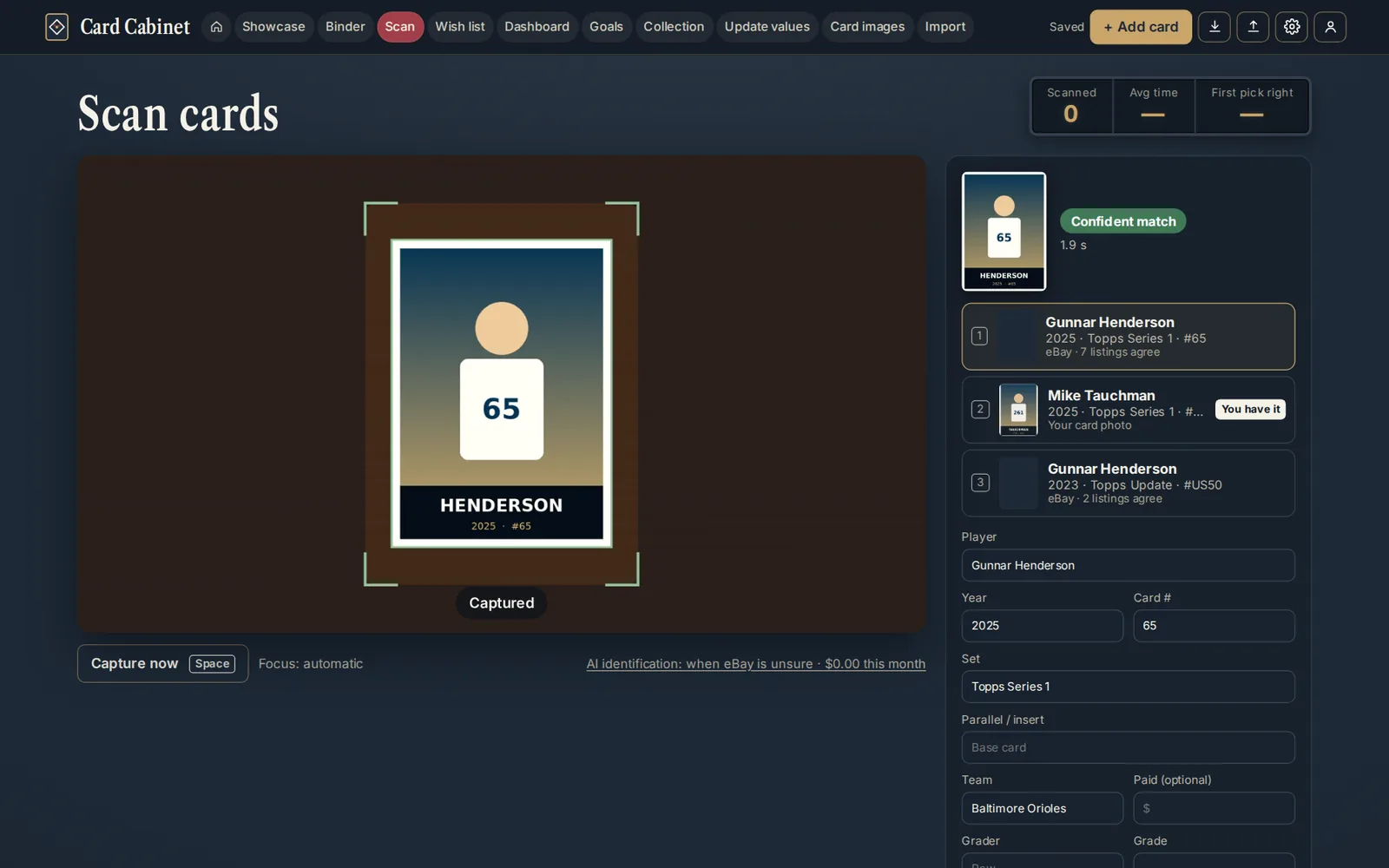
How Card Cabinet identifies a card
Three things are checked, and they're combined into one answer:
- eBay's image search finds listings whose photos look like your card. Their titles are read for the player, year, set, number and parallel, and the listings "vote" on which card it is.
- Your own photos. If you've scanned or photographed the same card before, that match counts too.
- Claude can read the card itself. In Settings → AI card identification → Use it, choose Only when eBay is unsure (the default), On every scan, or Never.
The result says how sure it is:
| Label | Means |
|---|---|
| Confident match | The top answer is well ahead of the rest and has a year. Usually right. |
| Check this one | A good guess with close alternatives. Look at the options before adding. |
| No match found — fill in the details | Nothing matched well. Type the details in. |
Each option shows where it came from, such as "eBay · 6 listings agree", "AI read the card" or "Your card photo", and is tagged You have it or On wish list when it applies.
When it reads a card wrong
- Pick another option. Up to four are listed. Click one, or press 1 to 4.
- Fix a detail. Every field (Player, Year, Card #, Set, Parallel / insert, Team) can be typed over before you add the card. Press E to jump to Player.
- Retake. Choose Retake (or Esc) and try again with steadier hands, less glare, or a plainer background.
- Already added it? Each scan appears under This session with an Undo link, and Undo all takes back the whole session. Or open the card later and edit it.
Some cards are harder than others. Vintage cards, oddball sets and parallels that differ only in color are the most common misses. Turning on Claude for every scan helps with those.
Adding copies, graded cards and wish list cards
- If you already own the card, the button reads Add another copy.
- If the card is on your wish list, the button reads Move from wish list, and it moves into your collection with your photo.
- Fill in Grader and Grade for a slab (for example PSA and 9), and Paid if you want to track gain and loss.
What a scan costs
Each scan counts once against your free monthly allowance (25 a month) unless you use your own eBay and Claude keys. The bar under the camera shows how Claude is set up and what it has cost this month.
Keyboard shortcuts
On a computer:
| Key | Does |
|---|---|
| Space | Capture now |
| Enter | Add the card |
| Esc | Retake |
| 1 to 4 | Pick an option |
| E | Jump to the Player field |
Tips for good scans
- Good, even light. Glare on a slab or a chrome card is the most common problem.
- One card at a time, filling most of the frame.
- On a computer, if the image is soft, choose Lock focus on card (on webcams that allow it).
- Scan the front. Add a back photo later from the card's Change photos window if you want one.
Updated 2026-10-05.