Getting started
Card Cabinet on your phone
Add Card Cabinet to your phone's home screen so it opens full screen like an app, and what's different on a phone.
Card Cabinet works in your phone's browser, and you can add it to your home screen so it opens full screen with its own icon, like an app. There's nothing to download from an app store.
Add it to your home screen
iPhone or iPad (Safari):
- Open cardcabinet.app in Safari and sign in.
- Tap the Share button (the square with an arrow pointing up).
- Scroll down and tap Add to Home Screen, then Add.
Android (Chrome):
- Open cardcabinet.app in Chrome and sign in.
- Tap the ⋮ menu at the top right.
- Tap Add to Home screen (or Install app), then Add or Install.
The icon opens straight into your collection. You stay signed in, just as in the browser.
What's different on a phone
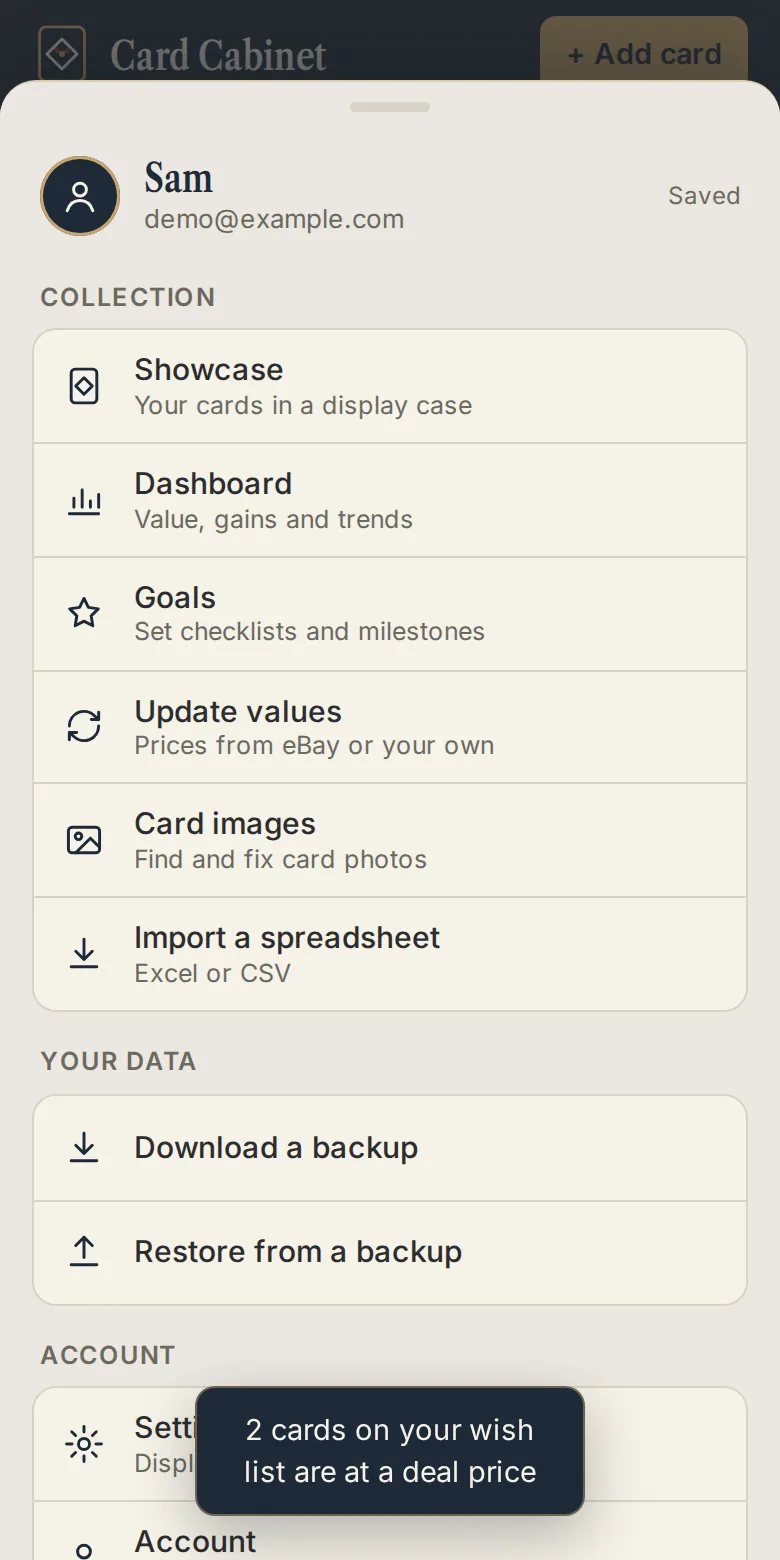
- The tab bar. Home, Collection, Scan, Wish list and More sit along the bottom. More holds the Showcase, Dashboard, Goals, Update values, Card images, Import, backups, Settings and your account.
- The scanner uses your back camera, picks your sharpest lens the first time, and fills the screen. See Scanning a card.
- Windows slide up from the bottom. Drag one down, or use your phone's Back button, to close it.
- The Binder (the binder on a desk) is made for a bigger screen, so phones show the Showcase instead. Your shared binder link works fine on phones.
- Spreadsheet imports work, but are easier on a computer.
Everything you do syncs through your account, so you can scan on your phone and organize on a computer.
Updated 2026-10-05.